 DekhNaThoda
Stepped away?
Catch up in ten seconds.
DekhNaThoda tells you what you missed while you were away from a meeting — who asked for you, what was decided, and what to say when you unmute. It never joins the call.
Works in Chrome and Edge. Reads the captions already on your screen.
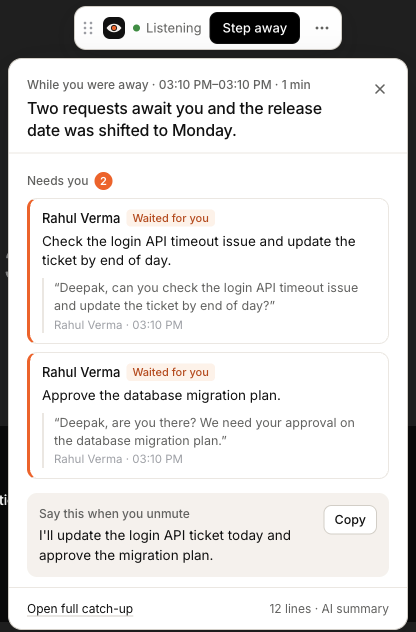
Step away without the fear of missing out
Join as usual
Open your meeting in the browser. A small bar appears and live captions turn on — only you can see them.
Step away
Click Step away, press Alt+Shift+A, or just lock your screen. If someone says your name, you hear it.
Come back informed
Press I’m back. See who needs you, the exact words they used, and a short summary of everything else.
Built for the moment you rejoin
Not another meeting-notes bot. DekhNaThoda focuses on the few minutes you missed and on what they mean for you.
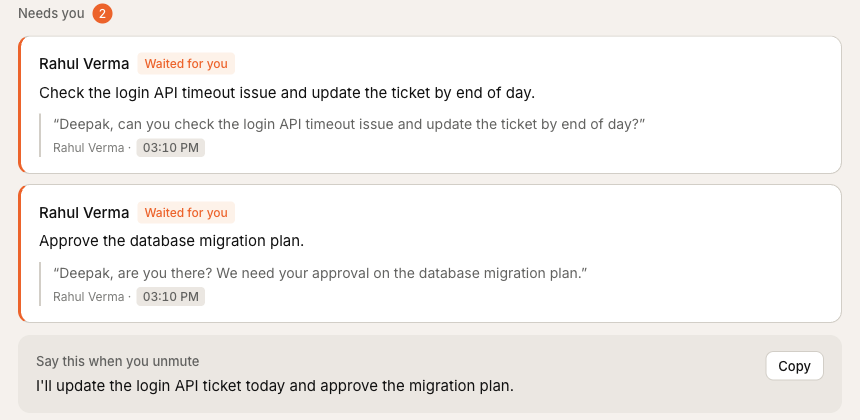
Know who asked for you — and whether they waited
Questions, requests and “are you there?” checks aimed at you come first, with the exact quote and time.
- Catches your name even when captions misspell it
- Flags the silence after someone called on you
- Suggests a reply you can say as you unmute
Hear it the moment your name comes up
A short sound plays in the meeting tab and a note shows who said your name and what they said. Choose the sound, how long it plays, and whether it plays only while you’re away.
- Chime, bell, pulse or soft — 3 seconds to “until I stop it”
- Stops when you press Stop, hit Esc or touch your keyboard
- Optional desktop and phone notifications
Rahul Verma “Deepak, can you join the release call?”
Stop soundEvery point links back to what was said
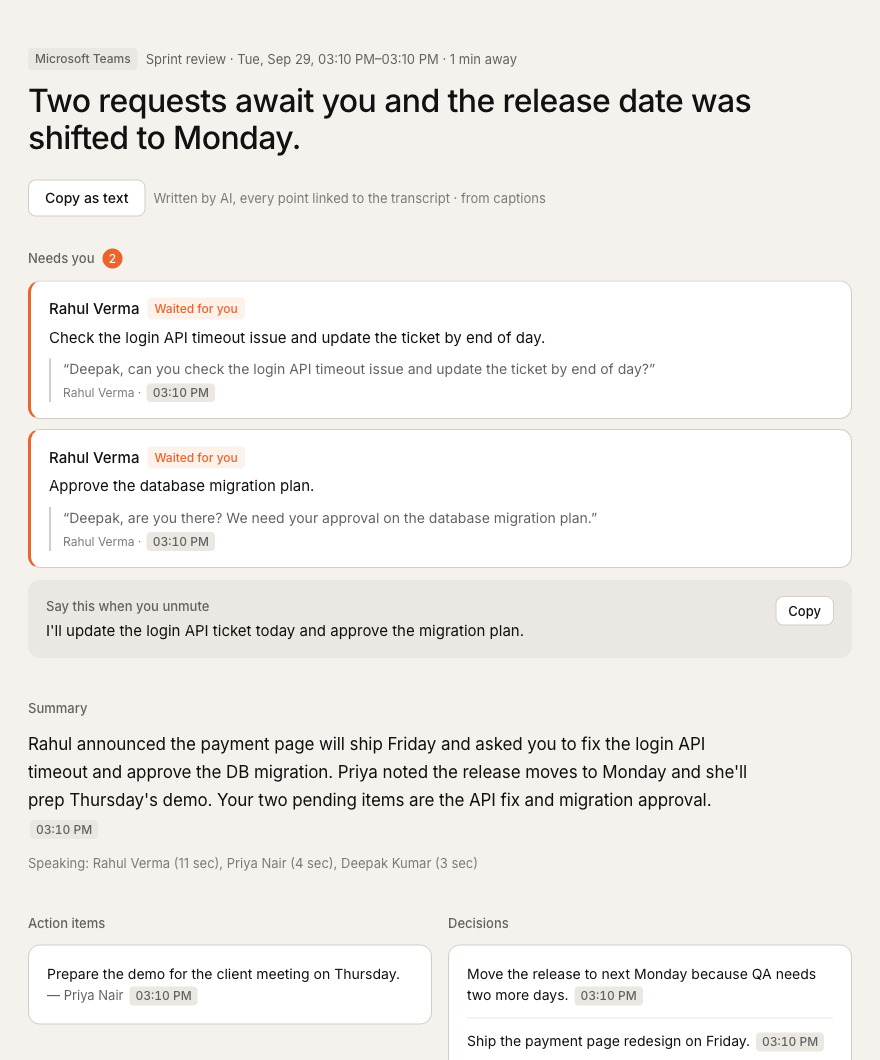
The summary is written as a short paragraph, with action items and decisions below it. Each one points to the exact line in the transcript — anything the AI can’t back up is thrown away.
- Full transcript with the time you were away marked
- History of every catch-up
- Copy as text for chat or email
Stays out of the way
A small bar you can drag anywhere and minimise. It remembers where you put it.
Never goes “away” by itself
Only when you say so or lock your screen. Idle detection is optional, because listening quietly isn’t leaving.
Works without captions
Optional audio backup records the meeting tab only while you’re away, and lets you replay it.
Your meetings stay on your computer
No account, no servers, no tracking. Transcripts and catch-ups are stored in your browser and deleted after the number of days you choose.
No bot in the call
Nothing joins the meeting and nothing is sent into it. DekhNaThoda reads the captions already shown to you.
AI only if you add a key
Summaries use your own Groq key. Only the minutes you were away are sent, never the whole meeting.
Open source
Every line of code is on GitHub. Read the privacy policy.
Ready in two minutes
DekhNaThoda isn’t on the Chrome Web Store yet, so it’s installed as a developer extension. It updates when you download a new version.
1. Add it to Chrome
- Download DekhNaThoda and unzip it.
- Open
chrome://extensionsand turn on Developer mode (top right). - Click Load unpacked and choose the unzipped folder.
- Pin the DekhNaThoda icon to your toolbar.
2. Set it up
- Enter your name and any nicknames people use — the settings page opens by itself.
- Optional: add a free Groq API key for written summaries. Name alerts work without it.
- Join a meeting in the browser. The Teams desktop app isn’t supported.
Good to know
Does anyone in the meeting know I’m using it?
No. It doesn’t join the call, and the live captions it turns on are personal to you. Check your organisation’s policy before using the optional audio backup.
Does it work with the Teams desktop app?
No — browser extensions can’t see inside desktop apps. Join Teams meetings at teams.microsoft.com in Chrome or Edge.
What does it cost?
The extension is free. Summaries use your own Groq key; a catch-up costs a fraction of a cent, and Groq has a free tier. Audio backup costs about $0.04 per hour you’re away.
What about meetings in Hindi or Hinglish?
Set the meeting captions to Hindi for the best results. Better support for Hindi and Hinglish — including recognising your name in Devanagari — is in progress.
Can the summary make things up?
Every item has to cite a line from the transcript, or it’s dropped. Mentions and “waited for you” are detected on your computer without AI.
Take the break. We’ll keep track.
Free and open source, for Google Meet and Microsoft Teams in the browser.